Unit 1
Hardware evidence
Computing
Computer Systems: CompTIA A+ Aligned
A hands-on Computer Systems course covering PC hardware, mobile devices, printers, networking, virtualization, operating systems, security, troubleshooting, and professional IT support. The course is aligned to the current CompTIA A+ Core 1 (220-1201) and Core 2 (220-1202) knowledge and skill objectives while remaining a high-school instructional course rather than an official CompTIA training product.
Course systems map
Six units. Two A+ cores. One technician workflow.
Use the unit map to see where hardware, networking, operating systems, security, operations, assessments, and the final service challenge connect.CompTIA A+ aligned · not endorsed220-1201 · Core 1220-1202 · Core 2New Jersey CSDT aligned
- Course scale
- 18 weeks · 90 lessons
- Evidence model
- Inspect → theory → controlled action → verify
- Assessment model
- Local grading · visual evidence · retry
- Capstone
- Technician Service Challenge

Unit 1 · Weeks 1–4
Technician Foundations and PC HardwareHardware · compatibility · troubleshootingA+ Core 1
Unit 2 · Weeks 5–6
Mobile Devices, Printers, and Peripheral SystemsMobile · printers · peripheralsA+ Core 1
Unit 3 · Weeks 7–9
Networking and Internet SystemsNetworking · tools · fault isolationA+ Core 1
Unit 4 · Weeks 10–12
Virtualization and Operating SystemsVMs · Windows · cross-platform supportCore 1 + Core 2
Unit 5 · Weeks 13–15
Security and Software TroubleshootingSecurity · hardening · software evidenceA+ Core 2
Unit 6 · Weeks 16–18
IT Operations, Integrated Review, and Technician CapstoneOperations · review · service challengeCore 2 + integratedAssessment map
Practice, prove, integrate
Each unit has a local practice/test pair. The midterm and final integrate evidence across multiple technician domains.Unit 2
Mobile + printUnit 3
Network evidenceMidterm
Core 1 integrationUnit 4
OS + virtualizationUnit 5
Security + softwareUnit 6
Operations + capstoneFinal
Core 1 + Core 2Featured technician media
Don’t just read the system. Inspect it.
Jump into the course’s highest-value visual and interactive learning surfaces.3D hardware
Diagnose inside the desktopOrbit the PC, isolate CPU/RAM/GPU/storage/power, then use service symptoms to choose the first hardware boundary.Open →Network investigation
Trace the SOHO systemUse React Flow plus the bounded terminal to separate gateway, Wi-Fi, DHCP, DNS, and service-path evidence.Open →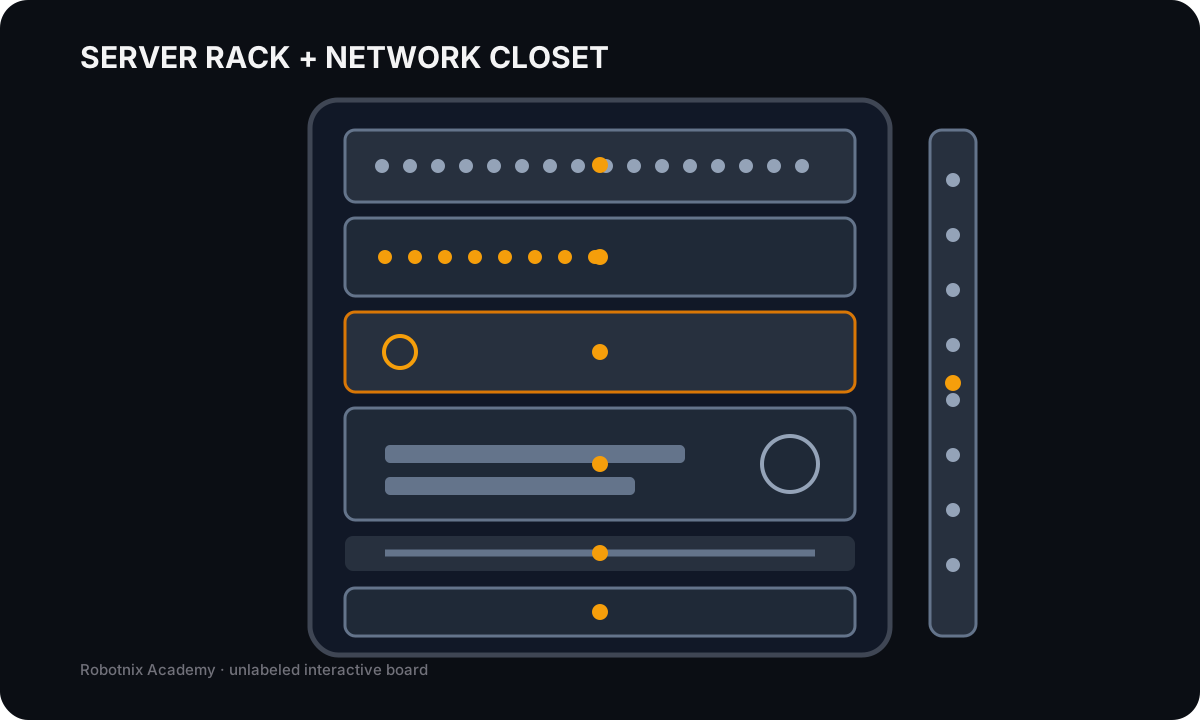
3D service environment
Separate rack data and powerInspect the Harborview rack, switch between front/rear views, and prove whether the data path or power path is actually failing.Open →
Visual study deck
Print the reference sheetsOpen the Robotnix-original hardware, connector, network, OS, security, troubleshooting, operations, and capstone sheets in one print-friendly view.Open →Week 016 entries
- overviewWeek 1: Technician Foundations and Hardware OrientationA computer does not fail as one mysterious box. It fails as a system.→
- Lesson 1Lesson 1: The Technician MindsetA user says, "The computer is dead."→
- Lesson 2Lesson 2: Open the BoxA desktop case makes the machine look like one object.→
- Lesson 3Lesson 3: Ports, Cables, and InterfacesA port is a clue.→
- Lesson 4Lesson 4: Firmware, POST, and the Boot PathA computer can fail before the operating system ever gets a chance to load.→
- Lesson 5Lesson 5: Your First Service TicketThis is where the week turns into a technician record.→
Week 026 entries
- overviewWeek 2: Motherboards, CPUs, RAM, and CompatibilityA part can fit and still be wrong.→
- Lesson 1Lesson 1: Motherboard as the Compatibility MapA motherboard is not just the largest board in the case.→
- Lesson 2Lesson 2: CPU Architecture, Sockets, Cores, and CoolingPeople love reducing processors to one number.→
- Lesson 3Lesson 3: RAM Generations, ECC, and Channel Configuration"Just add more RAM" sounds simple until the machine refuses to POST.→
- Lesson 4Lesson 4: Compatibility LabA compatibility mistake is cheapest before you touch the hardware.→
- Lesson 5Lesson 5: Diagnose the No-POST and Board-Level SystemA computer that receives power but never completes POST is failing in a different place than a computer that reaches the operating system and then crashes.→
Week 036 entries
- overviewWeek 3: Storage, M.2, SATA, NVMe, SAS, and RAIDA drive can be installed and still be invisible.→
- Lesson 1Lesson 1: Storage Media, Form Factors, and WorkloadsA 4 TB hard drive can hold more data than a 1 TB NVMe SSD.→
- Lesson 2Lesson 2: SATA, NVMe, PCIe, SAS, M.2, and mSATAStorage terminology has a bad habit of mixing physical shape, electrical interface, transport path, and protocol into one conversation.→
- Lesson 3Lesson 3: RAID Is Not BackupRAID can keep a storage system operating after some drive failures.→
- Lesson 4Lesson 4: Storage Selection LabThe fastest drive is not automatically the right drive.→
- Lesson 5Lesson 5: Diagnose the Missing or Failing DriveA drive that does not appear in File Explorer is not automatically dead.→
Week 046 entries
- overviewWeek 4: Power, Cooling, Expansion, and DisplaysA computer can have perfectly compatible parts and still fail because the system cannot deliver power, remove heat, or move a video signal from the graphics source to the display.→
- Lesson 1Lesson 1: Power Has a PathA PC does not simply have power or not have power.→
- Lesson 2Lesson 2: Cooling Is Part of ReliabilityA computer that cannot move heat away from its components cannot remain reliable under load.→
- Lesson 3Lesson 3: Expansion Cards and Display Technologies"The screen is broken" is one of those sentences that sounds useful until you try to troubleshoot it.→
- Lesson 4Lesson 4: Power and Expansion Planning LabA parts list is not a system design.→
- Lesson 5Lesson 5: Hardware, Video, and Projector Fault Isolationends with systems that all look "broken."→
Week 056 entries
- overviewWeek 5: Laptops and Mobile DevicesA laptop is still a computer.→
- Lesson 1Lesson 1: Laptop Hardware and Replacement DecisionsA laptop contains many of the same functional systems as a desktop.→
- Lesson 2Lesson 2: Batteries, Displays, Cameras, and Input HardwareA laptop screen is not one component just because it looks like one object.→
- Lesson 3Lesson 3: Mobile Accessories, Networks, MDM, and SyncPortable devices are useful because they connect to almost everything.→
- Lesson 4Lesson 4: Mobile Device Support LabA mobile support case can cross hardware, accessories, radio links, carrier service, device policy, accounts, and applications.→
- Lesson 5Lesson 5: Mobile Device Troubleshooting ChallengeMobile troubleshooting is full of symptoms that overlap.→
Week 066 entries
- overviewWeek 6: Printers and Peripheral SystemsA printer can produce a perfect internal test page and still be unusable to every student on the network.→
- Lesson 1Lesson 1: Printer Technologies and Deployment Decisions"Laser or inkjet?" is the wrong first question.→
- Lesson 2Lesson 2: Print Mechanisms and MaintenancePrinter symptoms stop looking random when you know what has to happen to create the page.→
- Lesson 3Lesson 3: Deploy, Share, Scan, and SecureA printer can make a flawless internal test page and still be unusable from every workstation.→
- Lesson 4Lesson 4: Printer Deployment and Peripheral Support LabToday you are not installing "a printer."→
- Lesson 5Lesson 5: Printer Troubleshooting ChallengePrinter troubleshooting gets easier when the symptom tells you where in the service or mechanical path to look first.→
Week 076 entries
- overviewWeek 7: Network Hardware, Media, and IP FoundationsA network is not the Wi-Fi icon.→
- Lesson 1Lesson 1: Network Hardware and Internet Edge DevicesThe box your internet provider gave you may contain a modem, router, switch, wireless access point, firewall, and DHCP service in one plastic case.→
- Lesson 2Lesson 2: Copper, Fiber, Coax, and Connector StandardsTwo cables can both end in RJ-45 style connectors and still be wrong for completely different reasons.→
- Lesson 3Lesson 3: IPv4, IPv6, Gateways, and Addressing ModesAn IP address by itself does not tell you whether a computer is configured correctly.→
- Lesson 4Lesson 4: Internet and Network Types SOHO LabA small-office network makes more sense when you build it from the outside in.→
- Lesson 5Lesson 5: Local Network Fault Isolation"The internet is down" tells you what the user feels.→
Week 086 entries
- overviewWeek 8: Network Services, Ports, Wi-Fi, and ConfigurationLast week we proved a local path:→
- Lesson 1Lesson 1: DNS, DHCP, NAT, VLAN, and VPNTwo services are blamed for an absurd number of network problems: DHCP and DNS.→
- Lesson 2Lesson 2: TCP, UDP, and the Complete A+ Port SetA port number is a clue.→
- Lesson 3Lesson 3: Wi-Fi, Bluetooth, NFC, and RFIDStrong Wi-Fi bars prove one thing reasonably well: the client sees a strong enough radio signal from the access point to report it.→
- Lesson 4Lesson 4: Network Services and SOHO Design LabA network diagram that stops at the router is incomplete.→
- Lesson 5Lesson 5: Service and Wi-Fi Failure ChallengeFive users can say:→
Week 096 entries
- overviewWeek 9: Network Tools and TroubleshootingA toolbox full of equipment does not make someone a technician.→
- Lesson 1Lesson 1: Troubleshoot in LayersA user says:→
- Lesson 2Lesson 2: Complete Technician Network Tool SetA crimper, cable tester, toner probe, Wi-Fi analyzer, loopback plug, and nslookup all belong in network support.→
- Lesson 3Lesson 3: Read IP, Route, DNS, and Connectivity EvidenceA terminal makes troubleshooting look authoritative.→
- Lesson 4Lesson 4: Complete Network Symptom LabA network can fail completely.→
- Lesson 5Lesson 5: Network Incident DefenseA technician's job is not finished when they name a likely cause.→
Week 106 entries
- overviewWeek 10: Virtualization and Cloud ComputingVirtualization can make one physical computer look like several computers.→
- Lesson 1Lesson 1: Why Virtualize?A virtual machine feels separate from the host.→
- Lesson 2Lesson 2: Hypervisors, VDI, Containers, and VM Requirements"It runs virtually" is not enough information to troubleshoot anything.→
- Lesson 3Lesson 3: Cloud Models, Services, and Characteristics"The cloud" sounds like a place.→
- Lesson 4Lesson 4: Virtual and Cloud Design LabTechnology names are easy to shop for.→
- Lesson 5Lesson 5: Virtualization and Cloud Troubleshooting ChallengeVirtualization and cloud create a dangerous illusion:→
Week 116 entries
- overviewWeek 11: Windows Installation, Administration, and NetworkingCore 1 taught you to trace hardware, network, and virtual infrastructure as systems.→
- Lesson 1Lesson 1: Windows Editions, Features, and Requirements"Windows 11" is not a complete system requirement.→
- Lesson 2Lesson 2: Install and Upgrade WindowsThe dangerous part of installing an operating system is not clicking Next.→
- Lesson 3Lesson 3: Windows GUI Tools and SettingsWindows has a lot of administrative tools.→
- Lesson 4Lesson 4: Windows Command Line and Networking LabThe Windows command line is not a collection of magic words.→
- Lesson 5Lesson 5: Windows Technician PracticalReal Windows tickets do not arrive labeled:→
Week 126 entries
- overviewWeek 12: Cross-Platform Operating Systems and ApplicationsWindows, macOS, Linux, ChromeOS, iOS, iPadOS, and Android do not use the same tools.→
- Lesson 1Lesson 1: Operating System Families, Filesystems, and LifecycleA technician sees a laptop that cannot open a file.→
- Lesson 2Lesson 2: macOS Features and ToolsA Windows technician can become a bad macOS technician very quickly by trying to translate every task into a Windows menu or command.→
- Lesson 3Lesson 3: Linux Client Tools and System ComponentsLinux can look intimidating because it exposes a lot of the system directly.→
- Lesson 4Lesson 4: Application Installation and Cloud Productivity LabAn installer can fail while the operating system is completely healthy.→
- Lesson 5Lesson 5: Cross-Platform Technician PracticalA real support queue does not organize itself by certification objective.→
Week 136 entries
- overviewWeek 13: Security Controls, Windows Security, and Device HardeningSecurity gets messy when controls become a checklist.→
- Lesson 1Lesson 1: Physical and Logical Security ControlsA lock is excellent at stopping someone who does not have the key.→
- Lesson 2Lesson 2: Windows Security, Permissions, and IdentityA user signs into Windows successfully and still gets Access Denied on a folder.→
- Lesson 3Lesson 3: Wireless Authentication and Device HardeningA hardened system is not a computer with every feature disabled.→
- Lesson 4Lesson 4: Secure Endpoint Configuration LabSecurity architecture is easy on paper.→
- Lesson 5Lesson 5: Security Controls PracticalSecurity work becomes interesting when two requirements conflict.→
Week 146 entries
- overviewWeek 14: Threats, Malware Response, and Secure Client SystemsA strange process is not automatically malware.→
- Lesson 1Lesson 1: Social Engineering, Attacks, and VulnerabilitiesA finance employee receives an urgent message that appears to come from an executive.→
- Lesson 2Lesson 2: Malware Types, Defensive Tools, and RemovalOne symptom does not identify malware.→
- Lesson 3Lesson 3: Secure SOHO Networks and BrowsersA secure laptop can still sit behind a badly configured router.→
- Lesson 4Lesson 4: Data Destruction and Security Triage LabDeleting a file is not the same as destroying data.→
- Lesson 5Lesson 5: Security Incident PracticalSecurity support is where a careless fix can make the incident worse.→
Week 156 entries
- overviewWeek 15: Software Troubleshooting Technician PracticalA symptom is the part the user can see.→
- Lesson 1Lesson 1: Troubleshoot Windows OS IssuesWindows can fail at several different stages while producing symptoms that sound almost identical to the user.→
- Lesson 2Lesson 2: Troubleshoot Mobile OS and Application IssuesA phone or tablet makes a factory reset look deceptively easy.→
- Lesson 3Lesson 3: Troubleshoot Mobile Security IssuesSecurity troubleshooting gets dangerous when fear becomes the diagnosis.→
- Lesson 4Lesson 4: PC Security Troubleshooting LabSecurity symptoms on a PC are messy because the same visible behavior can come from Windows, a browser, a network setting, a normal application, or malicious software.→
- Lesson 5Lesson 5: Domain 3 Technician PracticalNo objective labels today.→
Week 166 entries
- overviewWeek 16: Operational Procedures and Professional IT SupportA technician can make the correct technical change and still create a support failure.→
- Lesson 1Lesson 1: Documentation, Assets, and Change ManagementA technician fixes a laptop, closes the lid, and walks away.→
- Lesson 2Lesson 2: Backup, Safety, and Environmental ControlsA backup that has never been restored is not proven recovery.→
- Lesson 3Lesson 3: Privacy, Licensing, Policy, and Incident EvidenceA technician may have access to files, accounts, backups, logs, printers, cameras, mobile devices, and administrator tools that other people do not.→
- Lesson 4Lesson 4: Professional Communication and Remote SupportA technician can know the answer and still fail the support interaction.→
- Lesson 5Lesson 5: Scripting and AI Operations PracticalAutomation changes the cost of a mistake.→
Week 176 entries
- overviewWeek 17: Integrated Technician ScenariosFor sixteen weeks, the course has usually told you what system you were studying.→
- Lesson 1Lesson 1: Triage the Whole SystemA user says:→
- Lesson 2Lesson 2: Choose the EvidenceA tool does not make an investigation technical.→
- Lesson 3Lesson 3: Correct, Roll Back, and VerifyFinding the strongest cause is not the end of troubleshooting.→
- Lesson 4Lesson 4: Mixed Incident LabA real support queue does not label tickets hardware, networking, security, or Windows before you open them.→
- Lesson 5Lesson 5: Technician Review BoardA technician should be able to explain a repair without hiding behind the tool they used.→
Week 186 entries
- overviewWeek 18: Technician Service ChallengeA technician rarely receives a perfect little problem with one bad component and one obvious answer.→
- Lesson 1Lesson 1: Intake, Inventory, and BaselineThe fastest way to create a bad support plan is to start changing things before you understand the client.→
- Lesson 2Lesson 2: Configure the Service EnvironmentYesterday you established what Harborview owns and what it needs.→
- Lesson 3Lesson 3: Diagnose the Seeded FaultsHarborview is configured.→
- Lesson 4Lesson 4: Security, Recovery, and VerificationHarborview's systems are working again.→
- Lesson 5Lesson 5: Service Record and Technical BriefingThe final step in support is not closing the browser tab.→