Week 01 · lesson
Lesson 1: The Technician Mindset
A computer that will not start does not need a guess. It needs a process.
That is the first rule of this course.
CompTIA A+ is not really about memorizing part names. The useful skill is being able to look at a system, work safely, identify what you are dealing with, collect evidence, and make the next decision without creating a second problem.
What a technician actually does
A technician moves through a repeatable cycle:
- identify the problem;
- gather information;
- form a theory;
- test the theory;
- plan and implement the fix;
- verify full functionality; and
- document what happened.
You will use that pattern all year.
Safety comes before speed
Before touching internal hardware, control the environment.
Check for:
- power connected to the system;
- exposed conductors;
- damaged batteries;
- hot components;
- liquid damage;
- loose tools or metal objects;
- electrostatic discharge risk; and
- whether the device is actually safe to open.
For classroom work, disconnect external power before opening a desktop unless the lab specifically requires powered observation. Never open a power-supply enclosure. A PSU can contain dangerous stored electrical energy even after the computer is unplugged.
ESD: the failure you may never see
Electrostatic discharge, or ESD, happens when electrical charge moves suddenly between objects at different electrical potentials.
A discharge can be too small for you to feel and still damage electronics.
Good service habits include:
- work on a stable surface;
- avoid carpet when possible;
- handle circuit boards by their edges;
- do not touch gold contacts or component pins unnecessarily;
- use an ESD strap or grounded ESD procedure when the lab provides one;
- keep components in antistatic packaging until needed.
Build your technician station
Before touching a machine, create a service area with four zones:
- system zone for the computer;
- parts zone for removed components;
- tool zone for screwdrivers and test equipment;
- evidence zone for labels, photos, notes, and service records.
That sounds simple. It prevents lost screws, reversed cables, mystery parts, and bad documentation.
Your first service ticket
Scenario:
A desktop was working yesterday. Today the user presses the power button and sees no display. They say, "The computer is dead."
Do not diagnose it yet.
Write only what you actually know.
Observed claim
User reports no visible display after pressing the power button.
Questions to ask
- Does the power LED turn on?
- Do fans spin?
- Are there beep codes or diagnostic LEDs?
- Is the monitor powered?
- Is the display cable connected to the correct port?
- Did anything change since the system last worked?
The phrase computer is dead is not evidence. It is a user description.
Evidence checkpoint
By the end of this lesson, you should be able to:
- explain why technician work begins with evidence instead of assumptions;
- identify basic electrical and ESD hazards;
- describe a safe hardware service area; and
- convert a vague user complaint into specific questions.
Tomorrow we open the machine and start identifying the hardware that makes the system work.
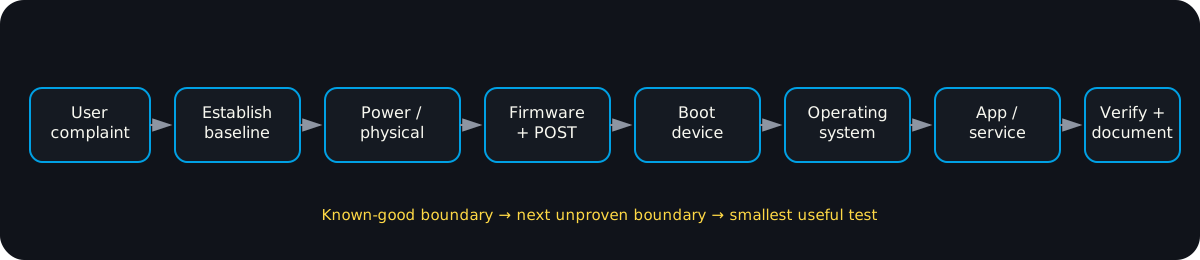
Diagrams open at a readable shape-aware scale. Zoom or expand when you need more detail.
Read it. Prove it.
Lesson knowledge checks
Answer from the lesson you just completed. Results stay in this browser and are not submitted.A user says, ‘The computer is broken.’ What should a technician do first?
Why is documenting the original system state useful before making a change?
system flow
Trace One Task Through the System
Input
A person or device creates an action or supplies data.
Application + OS
Software interprets the action and requests memory, files, devices, or network access.
Compute + Working State
CPU executes instructions while RAM holds active state needed by the running task.
Storage / Network / Service
Durable data may be written locally or a request may cross a network to a remote service.
Output + Evidence
The system returns a visible result or failure signal that can be used to test the model.
Read this concept flow as plain text
- Input. A person or device creates an action or supplies data.
- Application + OS. Software interprets the action and requests memory, files, devices, or network access.
- Compute + Working State. CPU executes instructions while RAM holds active state needed by the running task.
- Storage / Network / Service. Durable data may be written locally or a request may cross a network to a remote service.
- Output + Evidence. The system returns a visible result or failure signal that can be used to test the model.