Week 15 · lesson
Lesson 1: Troubleshoot Windows OS Issues
Core path: 42 minutes
Windows troubleshooting starts by proving how far the system still works.
Do not use reinstall as the first answer to every symptom.
Technician sequence
For every case use:
symptom
→ scope
→ recent change
→ last proven-good boundary
→ tool/evidence
→ theory
→ controlled correction
→ verify
BSOD
A blue-screen/stop error indicates a serious Windows failure, but the screen alone does not prove the failed component.
Preserve:
- stop information;
- recent driver/update/hardware changes;
- Event Viewer evidence where available;
- memory/storage/system-file evidence when appropriate.
Possible causes can include drivers, RAM, storage, system files, or hardware.
Degraded performance
Measure before guessing:
- CPU;
- memory;
- disk;
- network;
- startup applications;
- available storage;
- thermal/hardware evidence;
- malware/security indicators.
High utilization is demand evidence, not automatic component failure.
Boot issues
Trace:
firmware/POST
→ boot device
→ bootloader
→ Windows kernel
→ drivers/services
→ sign-in/profile
Safe Mode, recovery tools, and last-known-change reasoning can help isolate failures after hardware detection.
Frequent shutdowns
Investigate whether the shutdown is:
- thermal/power related;
- driver/OS instability;
- update/restart behavior;
- hardware fault;
- application/security related.
A shutdown under load with rising temperatures has a different fingerprint from a scheduled restart after updates.
Services not starting
Use Services, Event Viewer, dependencies, account/permission state, and last configuration change.
A stopped service can break one function while the rest of Windows remains healthy.
Applications crashing
If one application fails while Windows and other apps remain stable, begin at application scope:
- compatibility;
- update/plugin change;
- corrupted settings;
- missing dependency;
- permissions;
- application event logs.
Low-memory warnings
Check actual memory use, running processes, application requirements, and virtual-memory/system state.
Do not add RAM before proving that memory pressure is the current bottleneck.
USB controller resource warnings
USB devices consume controller resources/endpoints. A warning can occur when the controller cannot allocate sufficient resources for the connected device combination.
Technician checks can include:
- remove unnecessary USB devices;
- move a device to another controller/port group;
- match USB interface capability to the device;
- check driver/firmware state.
This is different from "USB port has no power."
System instability
General freezes, hangs, crashes, and unpredictable behavior require broader evidence:
- hardware diagnostics;
- memory/storage checks;
- system-file integrity;
- updates/drivers;
- malware scan;
- event/log evidence.
Do not collapse every unstable system into one cause.
No OS found
Separate:
firmware cannot see drive
vs
firmware sees drive but no bootable OS/bootloader is found
Check boot order, storage detection, partition/boot state, and recent storage changes before reinstalling.
Slow profile load
Possible boundaries include:
- roaming/domain profile dependencies;
- slow network/domain-controller path;
- login scripts;
- Group Policy processing;
- oversized/corrupted profile state;
- local resource pressure.
If the desktop becomes responsive only after a long sign-in, measure the sign-in/profile path rather than blaming general CPU speed.
Time drift
Check:
- automatic time synchronization;
- time zone;
- domain/time-service reachability;
- firmware clock behavior if time resets after power-off.
A wrong clock can also create certificate/authentication symptoms.
Student action
For all twelve symptom categories, create a table:
symptom:
first scope question:
Windows tool/evidence:
one plausible cause:
one alternative cause:
next controlled test:
Evidence checkpoint
You pass when you can distinguish the symptom name from the diagnosis and choose a Windows tool/test that actually reduces uncertainty.
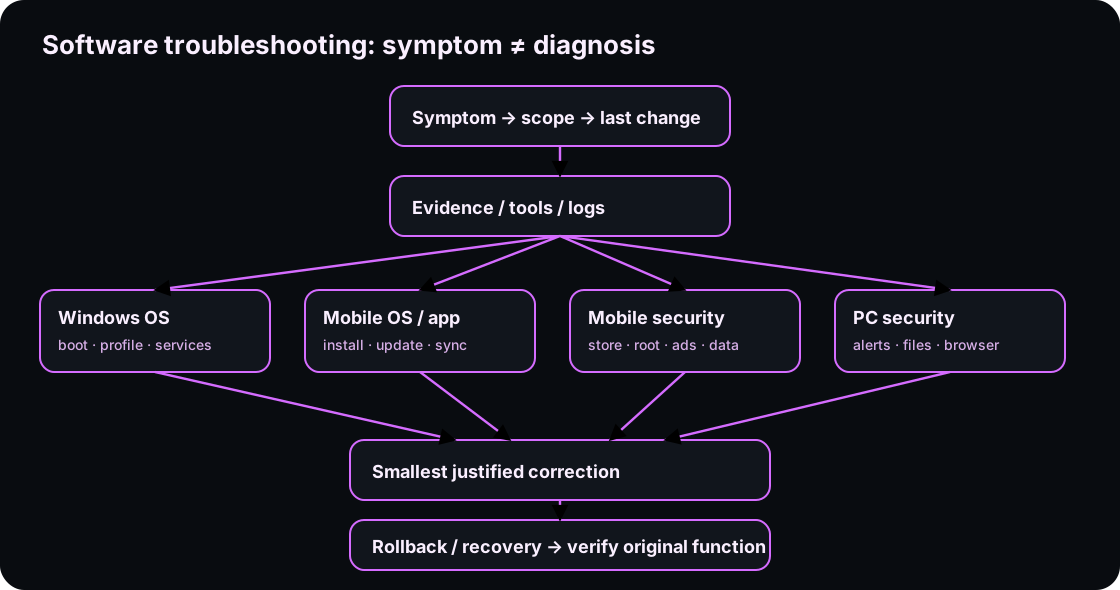
Diagrams open at a readable shape-aware scale. Zoom or expand when you need more detail.
Read it. Prove it.
Lesson knowledge checks
Answer from the lesson you just completed. Results stay in this browser and are not submitted.Windows reports ‘No operating system found.’ Which boundary should be checked before application settings?
A Windows profile takes several minutes to load but other accounts load normally. What does that evidence suggest?
system flow
Client/API Automation Path
Client Input
A client or automation supplies an explicit request and data.
API Contract
The API defines request shape, validation, authorization needs, response shape, and failure meanings.
Service Logic
Server-side logic applies the requested operation inside its responsibility boundary.
Persistent Data
The service reads or changes durable state only through the defined data boundary.
Response + Verify
The client receives a result or failure and checks observable evidence instead of assuming the action succeeded.
Read this concept flow as plain text
- Client Input. A client or automation supplies an explicit request and data.
- API Contract. The API defines request shape, validation, authorization needs, response shape, and failure meanings.
- Service Logic. Server-side logic applies the requested operation inside its responsibility boundary.
- Persistent Data. The service reads or changes durable state only through the defined data boundary.
- Response + Verify. The client receives a result or failure and checks observable evidence instead of assuming the action succeeded.