Week 12 · lesson
Lesson 1: Operating System Families, Filesystems, and Lifecycle
Core path: 42 minutes
A technician cannot support an operating system they have not correctly identified.
The first question is not "what command do I type?"
It is:
What platform am I supporting, what filesystem/data assumptions does it use, and is it still supported?
Workstation operating systems
Recognize these common desktop/workstation families:
- Windows — common in consumer, education, and enterprise environments;
- Linux — distributed through many distributions with different package/release models;
- macOS — Apple's desktop OS integrated with supported Apple hardware/services;
- Chrome OS — browser/cloud-centered desktop OS used heavily on Chromebook-style endpoints.
Mobile operating systems
Recognize:
- iPadOS;
- iOS;
- Android.
Mobile OS support emphasizes application stores, device management, permissions, synchronization, connectivity, updates, and hardware integration rather than traditional desktop administration alone.
Filesystems
A filesystem organizes stored data and provides features such as naming, metadata, permissions, journaling, capacity rules, and compatibility.
NTFS
Primary Windows filesystem for normal system/data volumes. Supports permissions and other Windows features.
ReFS
Microsoft filesystem designed for resilience/data-integrity use cases in supported Windows environments. It is not simply "new NTFS" and is not the normal boot-volume choice for typical client Windows installations.
FAT32
Older cross-platform filesystem with broad compatibility but significant file/volume limitations compared with modern filesystems.
exFAT
Designed for flash/removable storage and cross-platform compatibility with fewer FAT32 file-size limitations.
ext4
Common Linux filesystem.
XFS
Another Linux/Unix-like filesystem commonly seen in enterprise/server distributions and workloads.
APFS
Modern Apple filesystem used by macOS and Apple platforms.
Compatibility is a requirement
A storage device can be healthy while the receiving OS cannot use its current filesystem or application format as intended.
Example:
A removable drive works on one computer but is read-only/unavailable on another.
Before replacing the drive, verify filesystem and OS compatibility.
Vendor lifecycle limitations
End of life (EOL)
When a vendor ends support, the OS may stop receiving normal security updates, fixes, or application support.
"Still boots" does not mean "safe and supported."
Update limitations
Older hardware, firmware, or OS versions may be unable to install newer releases or required updates.
Cross-OS compatibility
Applications, filesystems, drivers, management tools, and workflows may not behave identically across Windows, Linux, macOS, Chrome OS, iOS/iPadOS, and Android.
Guided case
A classroom device still runs an old OS because one application depends on it.
The OS works, but vendor security support has ended.
The technician must document:
- application dependency;
- EOL risk;
- network/security boundary;
- replacement/migration options;
- whether virtualization or another compatibility strategy is appropriate.
Student action
Build a matrix covering all seven OS families and seven filesystems.
For each OS record:
workstation or mobile:
common support model:
update/lifecycle concern:
one compatibility issue:
For each filesystem record:
common platform/use:
strength or purpose:
compatibility concern:
Evidence checkpoint
A technician separates OS family, filesystem, application compatibility, and vendor support state instead of treating them as one issue.
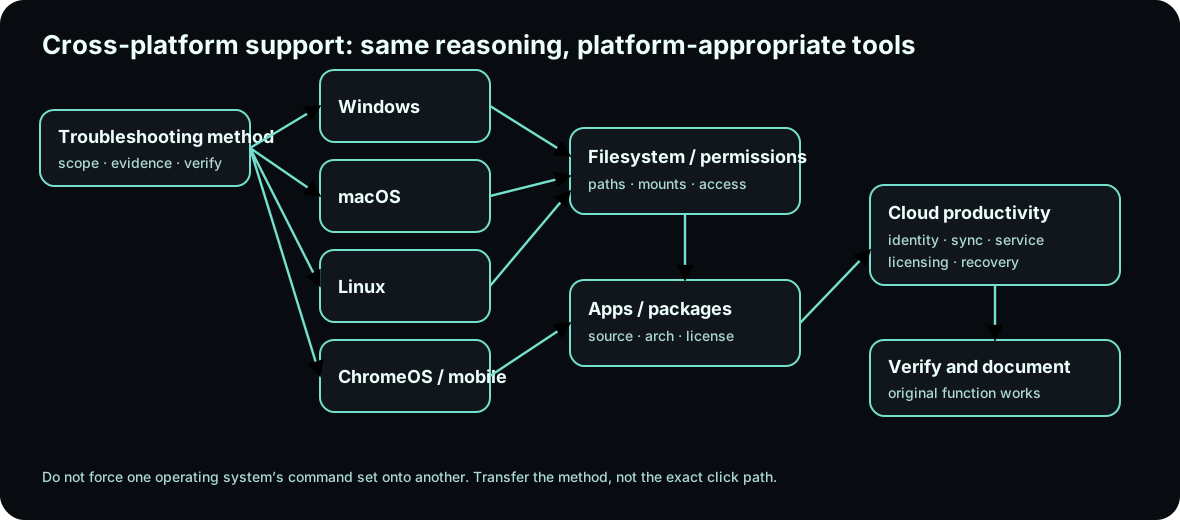
Diagrams open at a readable shape-aware scale. Zoom or expand when you need more detail.
Read it. Prove it.
Lesson knowledge checks
Answer from the lesson you just completed. Results stay in this browser and are not submitted.Why must a technician understand filesystem compatibility?
Which operating systems are built primarily for mobile devices in this course?
system flow
Incident Response: detect to improve
Detect
Observe alerts, failures, and system evidence without assuming the cause.
Preserve / scope
Record the timeline and bound affected systems before destructive changes.
Contain
Limit harm while preserving enough evidence to support the investigation.
Recover
Restore trusted service through tested repair, update, backup, or rollback paths.
Improve
Document lessons learned, remaining risk, and architecture or process changes.
Read this concept flow as plain text
- Detect. Observe alerts, failures, and system evidence without assuming the cause.
- Preserve / scope. Record the timeline and bound affected systems before destructive changes.
- Contain. Limit harm while preserving enough evidence to support the investigation.
- Recover. Restore trusted service through tested repair, update, backup, or rollback paths.
- Improve. Document lessons learned, remaining risk, and architecture or process changes.